

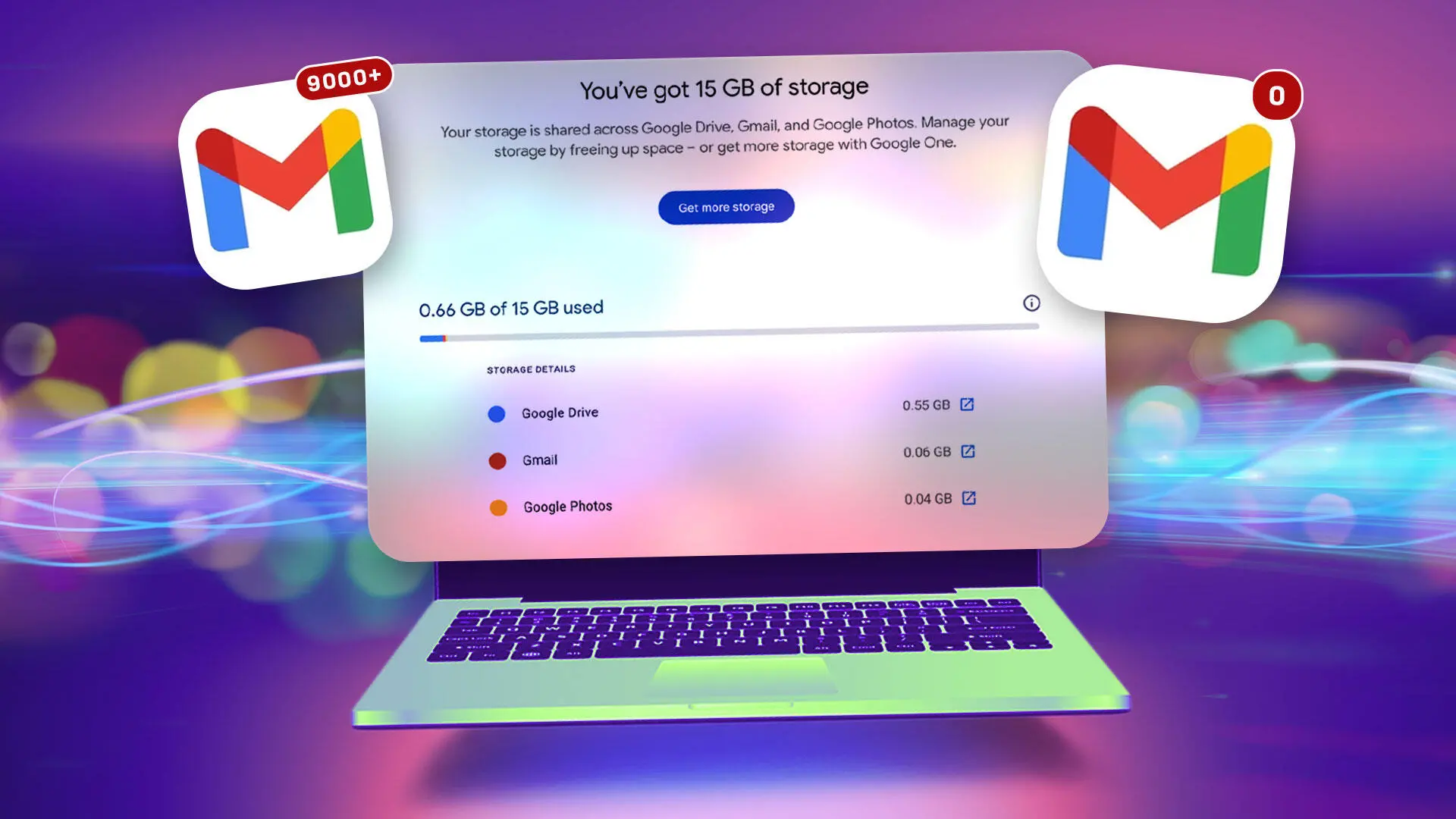
Your Gmail inbox is full, and ignoring it won’t make the problem go away. Every new photo, video, or attachment pushes you closer to the 15GB limit, and once you hit it, you can’t send or receive emails. Fortunately, there is a way to reclaim all of that storage without paying Google a cent — but you need to act before Google ends POP3 support later this year.
Why your Gmail storage fills up so quickly
The free 15GB isn’t just for email. It’s shared among Gmail, Google Drive, and Google Photos. A few years of smartphone photos and a handful of large attachments can eat up gigabytes. Once storage is full, Gmail stops delivering new messages, and you’ll see “Account storage is full” warnings. That means you can’t send attachments or receive photos until you free up space.
Many people panic and sign up for Google One. The cheapest plan gives 100GB for $20 per year. That’s fine if you want cloud storage, but it’s not ideal if you’re just trying to keep old emails from a decade ago. You can also delete large files, but Gmail’s search filters and storage manager make it time-consuming to identify what to remove. There’s always the option to download big files to your desktop, but then you’ll face the same storage problem locally.
The archive account loophole
Instead of paying or deleting, create a second Gmail account. Use Gmail’s built-in POP3 tools to pull all old mail into the new account. Once the transfer is complete, your original account is clean, and you get your 15GB back. Think of it as moving old boxes to a storage unit. The new account becomes your archive.
POP3 stands for Post Office Protocol. It’s a standard way to retrieve email from a server. Google has supported POP3 for years, but the company is now retiring it. New users lost access in the first quarter of 2026, and current users will see POP3 disabled later this year. After that, this free transfer method won’t be available. If you want to use it, start now.
Before you begin, ask yourself whether you really need every old email. If you’re only receiving occasional messages, you might simply delete old threads or archive them locally. But for people who use Gmail for business or who store years of photos and attachments, transferring everything to a second account is the only way to keep the free storage without losing data.
Why not just use IMAP?
Some people wonder if IMAP can do the job. IMAP syncs messages between accounts, but it doesn’t move them in one direction as cleanly as POP3 does. POP3 was designed to download and remove messages from a server, making it ideal for this kind of one-time migration. With IMAP, you’d be copying folders, and you’d still need to clean up the original account. Because Google is ending POP3 support, this specific workaround has a deadline.
Before you transfer, back up
Transferring email between accounts always carries some risk, so back up first. Use Google Takeout to download all your messages to your computer or an external drive. In testing, an account with about 75,000 messages produced a downloadable archive in about 2 hours. The download itself may take longer depending on your connection. Once you have a backup, you can safely proceed.
Step-by-step: Set up your original account
Log into your original Gmail account. Click the gear icon in the top-right, then choose “See all settings.” Go to the “Forwarding POP/IMAP” tab. Under POP download, choose “Enable POP for all mail.” Then select “When messages are accessed with POP” and choose “delete Gmail’s copy.” This will remove messages from the original account once they’re fetched by the new account. Click “Save Changes.”
Step-by-step: Create and connect your archive account
If you haven’t created a new Gmail account yet, do that now. Log in, click the gear icon, and open “See all settings.” Go to the “Accounts and Import” tab. Next to “Check mail from other accounts,” click “Add a mail account.” Enter your original Gmail address and click “Next.” Choose “Import emails from my other account (POP3)” and click “Next.” Enter the password for your original account, or an app password if required. For the port, select 995. Check these boxes: “Always use a secure connection (SSL) when retrieving mail,” “Label incoming messages,” and “Archive incoming messages (Skip the Inbox).” Then click “Add Account.” If prompted, answer yes to sending mail as your original address.
Why you may need an app password
During testing, the normal Google password didn’t work when connecting Gmail accounts. The solution is to create an app password. Go to your Google account’s security page at myaccount.google.com/apppasswords. You’ll need 2-Step Verification enabled. Create a name for the password, like “Email Transfer,” and click “Create.” Google will give you a 16-digit passcode. Enter this in place of your regular password. Important: Google displays the passcode only once. Write it down or store it securely. After the transfer finishes, you can delete the app password.
How long does the transfer take?
The transfer time depends on how many messages you have. A test account with about 75,000 messages took roughly two full days to move everything. During this time, the new account will be fetching mail from your original account on a regular basis. You don’t need to keep the new account open, but it should be active. After the transfer, your original account will move the fetched messages to the Trash. You must empty the Trash manually. In testing, deleting 75,000 messages from the Trash took about an hour. Once the Trash is emptied, your original account will show a huge drop in storage usage. In one test, an account using more than 12GB dropped to 0.66GB.
What doesn’t transfer
Two categories of messages are not transferred: Drafts and Spam. Drafts remain in your original account, so decide whether to keep or delete them. Spam is automatically deleted after 30 days, or you can clear it manually after the transfer.
Potential risks to keep in mind
There are a few risks to consider. If you choose “delete Gmail’s copy” and the transfer fails partway, you could lose messages. That’s why a backup is essential. Also, if you don’t empty the Trash, your original account won’t show the full storage refund. And if you don’t delete the app password, it remains a potential security risk.
Stop the transfer and clean up
Once all emails have been imported, you don’t want the new account to keep checking the old one forever. In your new account, go to “Settings” then “See all settings.” Choose the “Accounts and Import” tab. Under “Check mail from other accounts,” find your original account and click “delete.” Confirm when prompted. If you created an app password, return to myaccount.google.com/apppasswords and revoke it.
One last thing to keep in mind: Google deletes accounts that have been inactive for more than two years. Even if you plan to use your archive account only for storage, sign in at least once every two years to keep it active. That way, you’ll retain your emails and your free storage. Your original Gmail account now has a new lease on life, and you’ve avoided paying for extra storage — for now.
Source:CNET News